How to Download GameChanger Full Game Videos (2026 Guide)
Save complete game recordings from GameChanger for recruiting, film review, and permanent family archives.
Quick Answer
Install ClipKeeper Pro (Chrome extension), go to GameChanger at web.gc.com, navigate to a game's Full Event Videos tab, and click Download Full Video. The complete game downloads as a single MP4 — these files are large (often 10 to 30 GB), so give it a few minutes on a solid connection.
1What Are Full Event Videos on GameChanger?
GameChanger offers two types of videos:
Individual Clips
The short highlight plays (9 seconds to 1 minute) that GameChanger automatically creates for big moments like home runs, strikeouts, and goals.
Full Event Videos
Complete game recordings from start to finish. These are the full, unedited videos available under the "Full Event Videos" tab on game pages. Perfect for film review, recruiting, and preserving entire games.
2Why Download Full Game Videos?
Key Reasons Parents & Coaches Download Full Games:
- ✓Create recruiting videos: coaches want to see full games, not just highlights
- ✓Film review: analyze entire plays, not just the result
- ✓Permanent archive: keep complete games long after the season ends
- ✓Share with family: grandparents can watch the whole game
- ✓Keep your own copy, independent of any subscription
Full Event Videos Require Pro
Full game downloads are a ClipKeeper Pro feature ($5/month or $29/year). Individual clip downloads are available on the free plan. Learn the difference between clips and full games →
3How to Download GameChanger Full Game Videos
Step 1: Install ClipKeeper Pro
Install the ClipKeeper Chrome extension from the Chrome Web Store.
Click the ClipKeeper icon in Chrome, then click "Upgrade to Pro" to purchase a license. Enter your license key to unlock full game downloads.
Step 2: Navigate to Full Event Videos
Go to web.gc.com and log in with your GameChanger account.
Select your team, then click on a game from the schedule. Click the "Videos" tab, then click "Full Event Videos".
Step 3: Download the Full Game
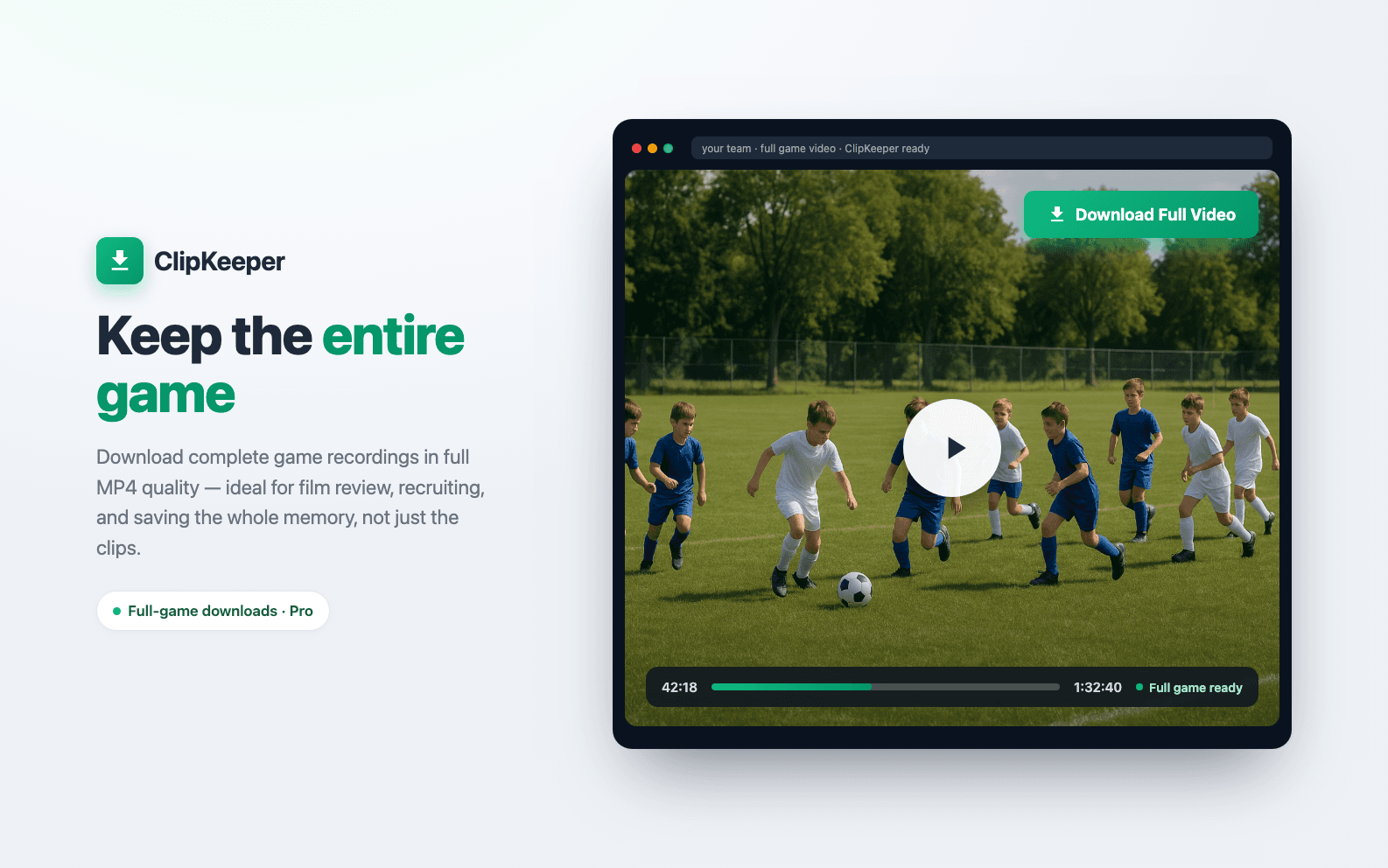
You'll see a green "Download Full Video" button appear on the page (added by ClipKeeper).
Click it, choose where to save the file, and the complete game will download as an MP4 file.
.mp4 files, ready to use anywhere. Individual clips come as MP4 (new games) or .ts (older archives).4Full Games vs Clips: Key Differences
| Feature | Individual Clips | Full Game Videos |
|---|---|---|
| Length | 9 sec to 1 min | 30 min to 2 hours |
| File Format | .ts (convert to MP4) | .mp4 (ready to use) |
| File Size | 3 to 6 MB | 10 to 30 GB |
| Best For | Highlight reels, social media | Recruiting, film review, archives |
| ClipKeeper Plan | Free or Pro | Pro only |
5Frequently Asked Questions
How big are full game downloads?
Typically 10 to 30 GB depending on game length and video quality. Make sure you have enough storage space on your computer before downloading.
Can I download full games on the free plan?
No, full game downloads require ClipKeeper Pro. The free plan allows downloading individual clips (up to 3 per week).
Do I need GameChanger Premium?
Yes. ClipKeeper downloads videos you already have access to through GameChanger. Full Event Videos are typically only available to team staff or users with GameChanger Premium.
Can I download full games to my phone?
ClipKeeper is a Chrome extension, so it works on desktop computers only. After downloading to your computer, you can transfer the MP4 file to your phone via cloud storage or AirDrop.
Ready to Download Full Game Videos?
Install ClipKeeper Pro and start saving complete game recordings today.
Get ClipKeeper ProRelated Articles
How to Share Your Kid's Baseball Highlights With Grandparents (2026)
Grandma lives three states away and can't make it to the game. Here is how to download your kid's GameChanger clips and share them with grandparents, aunts, and uncles by text, email, Google Drive, or a private family link.
End-of-Summer Baseball Video Backup: Save the Season Before You Forget (2026)
Summer ball is wrapping up and fall is coming. This is your last clean window to download every GameChanger clip before life gets busy. A simple folder system, batch download plan, and cloud backup checklist for parents.
How to Make a Highlight Reel from GameChanger (Beginner Guide)
Turn your GameChanger clips and full game videos into a highlight reel. How to trim the dead time out of a full game, pull the best plays, and stitch them together in a free editor like CapCut, even if you have never edited video before.
Written by
Casey JessupClipKeeper Founder | Parent of youth athletes helping families preserve sports memories